
IntraParis nomade is the remote access portal provided to the agents of the City of Paris to consult their professional tools outside of administrative premises. The platform provides access to messaging, HR services, and business applications from a personal computer or mobile device, provided that one has an internet connection and valid credentials.
Agent ID format and common input errors
Before even discussing the login procedure, a technical point blocks a significant number of agents from the very first attempt. The ID follows the format [email protected], but several transliteration rules apply and are not always well understood.
Accents are removed: an “é” becomes “e,” an “ê” becomes “e.” Hyphens in compound first names are also dropped. An agent named Jean-François Lévêque must enter [email protected], without hyphens or accented characters.
This convention explains why so many support requests are about ID errors rather than actual technical problems. Checking the exact form of one’s ID before any other action avoids most blockages. The procedure for logging into my IntraParis nomade agent account relies on this standardized format, and any variant with accents or hyphens will be systematically rejected by the authentication system.
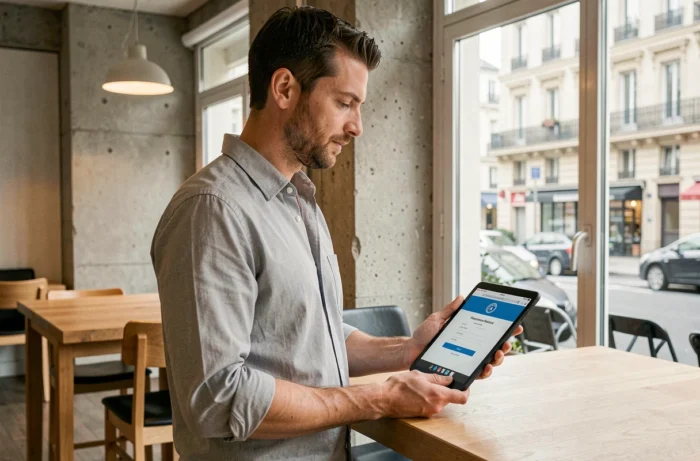
Two-factor authentication on IntraParis nomade
Since 2024, the City of Paris has been gradually rolling out two-factor authentication (2FA) on IntraParis nomade. This mechanism adds a layer of verification after entering the username/password pair.
The principle is simple: after entering your standard credentials, a second code is sent to you via SMS or generated through a dedicated application. This code must be entered within a short time frame to validate the connection.
Who is affected by 2FA
The deployment primarily targets profiles considered sensitive: finance departments, civil status, human resources. The generalization to all agents is gradual, and the City has not communicated a complete schedule for the total coverage of the system.
If you have not yet received a notification regarding 2FA, your profile is likely not yet integrated into the current scope. The connection is then made only with the username and password.
Concrete steps to connect from a personal device
Connecting to IntraParis nomade goes through the address nomades.apps.paris.fr, accessible from a recent web browser. Here is the complete sequence:
- Open an up-to-date browser (outdated versions may cause SSL certificate errors) and enter the URL nomades.apps.paris.fr in the address bar.
- Enter the ID in the format [email protected], without accents or hyphens, then the password associated with the agent account.
- If 2FA is activated on your profile, enter the code received via SMS or generated by the authentication app in the designated field.
- Once logged in, navigate to the desired service: messaging via webmail.apps.paris.fr, HR space, or business applications available from the portal.
A point often overlooked: avoid public Wi-Fi networks to access the portal. A secure 4G, 5G, or home Wi-Fi connection limits the risks of data interception. The portal also reminds that any unauthorized access attempt is punishable under articles 323-1 to 323-7 of the penal code.
Forgotten password or locked account: the recovery procedure
Password reset goes through a dedicated page, accessible from the “Forgot password” link on the portal’s login screen. The address leads to the digital identity management service of the City of Paris.
The procedure requires entering the agent ID (always in the format without accents) and answering a verification question. A reset link or code is then sent, depending on the method configured on the account.
When to contact IT support
If the online reset does not work (obsolete recovery address, changed phone number), the DSIN support remains the only recourse. Several agents report that processing times vary depending on the period, with peaks in requests at the beginning of the month and after school holidays.
Before seeking support, two quick checks to perform:
- Confirm that the entered ID complies with the format [email protected], without any unnecessary capital letters or special characters.
- Test the connection from another browser or device to rule out a local issue (cache, browser extension, blocking antivirus).
- Check that the internet connection is stable, as a network interruption during 2FA authentication can cause the temporary code to be rejected.
Best practices for logging out and mobile security
A reflex often forgotten: always log out after each session, especially on a mobile device or shared computer. Leaving a session open on an unlocked phone exposes all data accessible via the portal (pay slips, personal information, professional messaging).
Regularly changing passwords is part of the recommendations from the City of Paris. If you receive a suspicious message requesting your credentials, it is recommended to report it immediately to the City’s dedicated address rather than clicking on a link. Phishing attempts targeting municipal agents exist and specifically exploit the lack of knowledge of official login procedures.
Remote access remains subject to the charter of proper use of the City and Department of Paris’s IT resources. This charter outlines the conditions of use and reminds each agent of their confidentiality obligations, even outside of work premises.